TradingView tips for a clean chart
Four small TradingView settings make a big difference when you run Basics, Untested Levels or Straydog Zones & Levels: hide the long line of settings next to each indicator's name, set the chart to the market's clock, know what the SET and B-ADJ buttons do, and keep the indicators one click away.
The indicators
Basics and Untested Levels are free on TradingView; Straydog Zones & Levels draws the daily DAX zones.
Install Basics (free) →1. Hide the inputs and values next to the indicator's name
At the top left of every chart, TradingView shows each indicator's name. By default it adds every setting of that indicator after the name (the inputs) and its current values. Basics has many settings, so that line runs across the whole chart and hides the candles behind it:


To clean it up, for each indicator on your chart:
- Double-click the indicator's name at the top left of the chart (or hover over it and click the gear icon ).
- Open the Style tab and scroll to the bottom.
- Untick Values in status line and Inputs in status line, then click Ok.
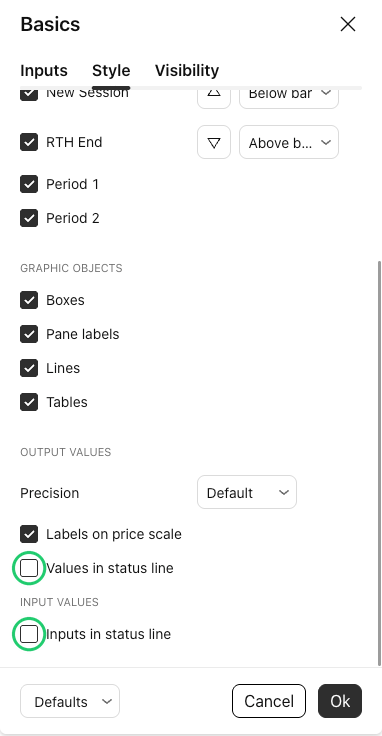
Nothing else changes: the lines, labels and all settings stay the same. Do the same for Untested Levels and Straydog Zones & Levels.
2. Set the chart to the market's home timezone
The indicators work in any timezone. With the chart in the market's home timezone, the times on your chart match the session times on this site: New York for the Nasdaq, S&P 500, Dow and Russell, Berlin for the DAX, London for the FTSE 100 and Amsterdam for the AEX. Click the clock at the bottom right of the chart and pick the city. The times per market: trading sessions.
3. Know your SET and B-ADJ buttons on futures charts
On a futures chart TradingView shows two buttons at the bottom right, next to the clock. SET appears on daily and higher charts.

| SET (settlement as close) | Uses the exchange's settlement price as the daily close. Basics' daily averages and Daily ATR are based on the settlement, so TradingView's own moving average and ATR on a daily futures chart only match them with SET on. When it is off, Basics shows a small notice at the bottom left of daily and higher futures charts. |
|---|---|
| B-ADJ (adjust for contract changes) | Shifts the candles from before a quarterly roll so the history connects smoothly. With B-ADJ on, those candles line up with the b-adj lines; with B-ADJ off, with the normal lines. Both are fine — just know which one you use. More: back-adjusted levels. |
To compare a Basics moving average with TradingView's own: SET on, and B-ADJ off for the normal lines or on for the b-adj lines.
4. Keep the indicators in your favourites
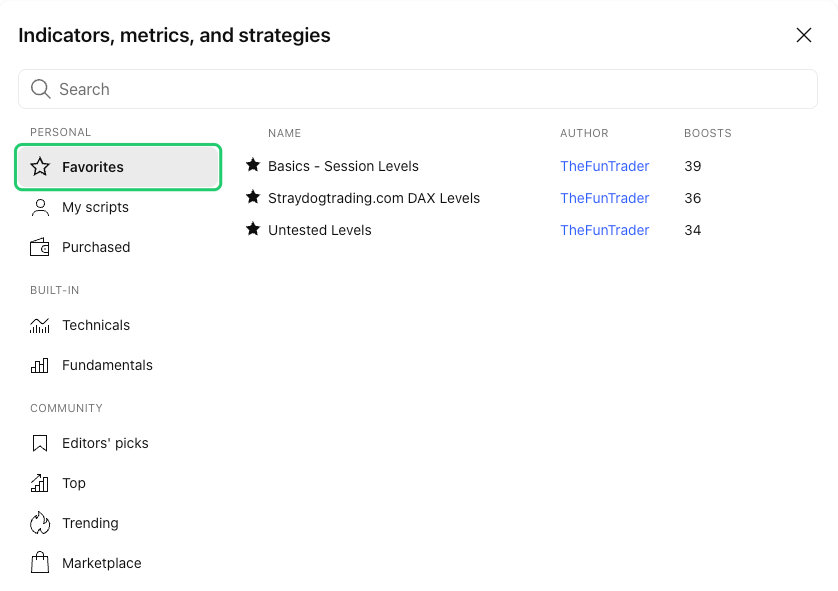
On each indicator's page on TradingView, click the star (Add to favorites). On any chart you then find them under Indicators → Favorites, ready to add in one click — handy when you open a new layout or work on several charts.
Step by step, per indicator: install Basics, install Untested Levels, install Straydog Zones & Levels.
Frequently asked questions
Do I have to untick the status line boxes for every indicator?
Yes, once per indicator on your chart: Basics, Untested Levels and Straydog Zones & Levels each have their own Style tab. TradingView keeps the setting in your chart layout.
Does hiding the inputs change the lines?
No. It only removes the text next to the indicator's name at the top left of the chart. Every line, label and setting stays the same.
Which timezone should I use?
Any timezone works. With the chart set to the market's home timezone — New York, Berlin, London or Amsterdam — the session times on your chart match the times on this site.
Should SET be on or off?
On, if you want TradingView's own moving average and ATR on a daily futures chart to match Basics. Basics uses the exchange's settlement as the daily close and shows a small notice when SET is off.
Should B-ADJ be on or off?
Your choice — just know which one you use. With B-ADJ on, candles from before a quarterly roll line up with the b-adj lines; with B-ADJ off they line up with the normal lines.
A clean chart in two minutes
Basics is free on TradingView. Add it to any supported chart, untick the two status line boxes, and you see the levels — not the settings.