Basics settings: every input explained
Basics works the moment you add it: it recognises your ticker and sets itself up. When you want to change what you see — colours, label texts, which lines, how many days back — everything is in the settings window. This page explains every setting once: first the row each line has, then the groups for help screens, backgrounds, general settings and the cash-future difference.
On this page
Part of Basics
Free TradingView indicator with all session, week and month levels for index, futures and CFD charts.
Install Basics (free) →Opening the settings
Double-click the name Basics at the top left of your chart, or hover over it and click the gear icon . The settings window opens on the Inputs tab — everything on this page is in that tab. Changes show on the chart straight away; Ok keeps them, Cancel undoes them. The Style tab holds TradingView's own display options; for a clean chart untick Values in status line and Inputs in status line there — see TradingView tips for a clean chart.
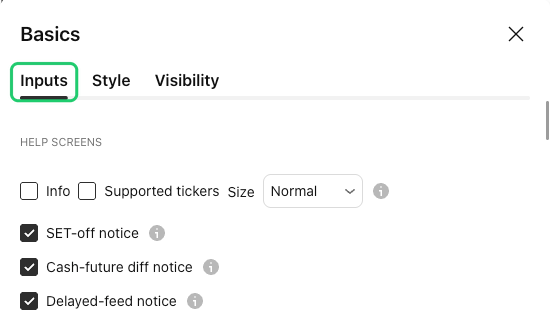
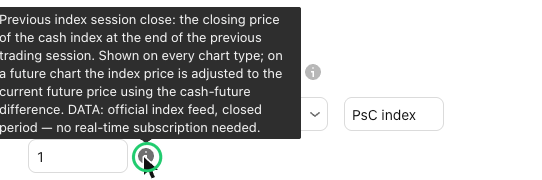
The Inputs tab has nine groups, always in this order: Help screens, Session levels, Index levels, Futures levels, Index SMAs, Futures SMAs, Backgrounds, General and Cash-future diff. Every setting with an i next to it has an explanation: hover over the i to read it.
Settings per line
Every line has the same row of settings, so you only need to learn it once:
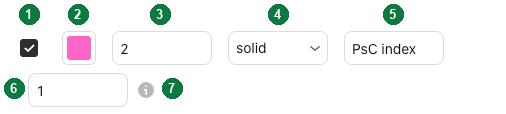
| 1 · On / off | Shows or hides the line. |
|---|---|
| 2 · Colour | Any colour, including transparency. |
| 3 · Width | Line width from 1 to 5. |
| 4 · Style | Solid, dashed or dotted. |
| 5 · Label text | The text next to the line on your chart. Type your own name for it, or clear it to show the line without a label. |
| 6 · Lookback | How many of the most recent lines of this kind stay on the chart, from 1 to 20. 1 (the default) shows only the latest — for example yesterday's closing price; 3 also shows the two before it. |
| 7 · Explanation | Hover over the i to read what the line shows. |
A high and a low each have their own row, so you can show only one of them. Two kinds of rows are shorter:
- b-adj lines — the back-adjusted versions of futures levels — have only on/off and a label text; they use the colour and width of the normal line above them and are always drawn dotted. What b-adj means.
- VWAP and MDR have on/off, colour and width: they move with price during the day, so a label text and lookback don't apply.
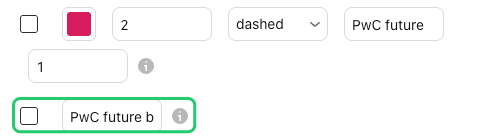
Each group starts with a master switch, Show all objects in '…' group. It hides or shows the whole group in one click; the checkboxes of the individual lines keep their state.
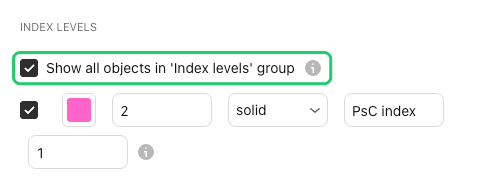
Every line has its own page
What a line shows, when it appears and on which charts is explained on its own page. Each of those pages also shows that line's rows from the settings window.
| Session levels | RTH O · PMKT H / PMKT L · PMKT M · US RTH O · EsH / EsL · VWAP · MDR · D ATR H / D ATR L |
|---|---|
| Index levels | RTH O index · PsC index · PsH / PsL index · PwH / PwL index · PwC index · PmH / PmL index · PmC index · CwO index · Cw 50% / Cw 61.8% index |
| Futures levels | PsC future · PsS future · PsH / PsL future · PwH / PwL future · PwC future · PmH / PmL future · PmC future · PwH / PwL future b-adj · PwC future b-adj · PmH / PmL future b-adj · PmC future b-adj · CwO future · Cw 50% / Cw 61.8% future |
| Index SMAs | D SMA index · W SMA index · M SMA index |
| Futures SMAs | D SMA future · W SMA future · M SMA future · D SMA future b-adj · W SMA future b-adj · M SMA future b-adj |
Help screens
The first group: two panels you can open, and four notices that appear by themselves as a small note at the bottom left of the chart, only when they apply.
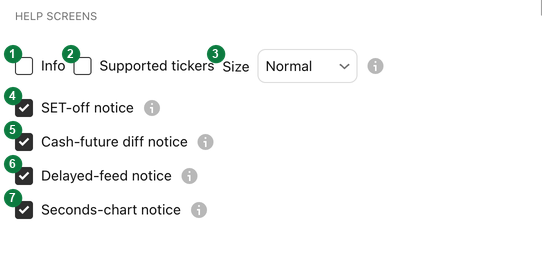
| 1 · Info | A welcome panel in the middle of the chart. Off by default. |
|---|---|
| 2 · Supported tickers | A panel with every ticker Basics recognises, per market and per type (index, futures, CFD). Off by default. |
| 3 · Size | The text size of both panels. |
| 4 · SET-off notice | On a daily or higher futures chart, when TradingView's SET button (settlement as close) is off. Basics uses the settlement as the daily close, so TradingView's own averages only match its lines with SET on. On by default. |
| 5 · Cash-future diff notice | When the data used for the cash-future difference no longer follows the main future closely, usually for a few days before a quarterly roll. On by default. |
| 6 · Delayed-feed notice | When the main future's data arrives 5 minutes or more behind the clock, because there is no real-time subscription. The lines that move during the day then lag by that delay. On by default. |
| 7 · Seconds-chart notice | On a seconds chart, when levels that need more history than the chart loads are hidden — mostly on 1-second charts. Use 1 minute or higher to see every level. On by default. |
Backgrounds
Shading and markers behind the candles. Each has an on/off switch and a colour; the shaded areas also have a transparency (0–99, higher is lighter).
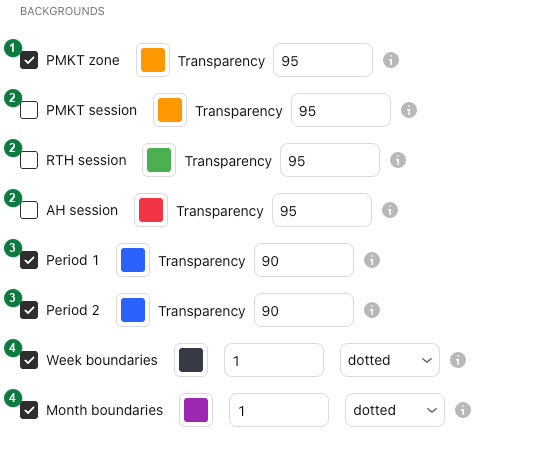
| 1 · PMKT zone | A box from the pre-market high to the pre-market low, so you see the range before the opening at a glance. On by default. |
|---|---|
| 2 · PMKT, RTH and AH session | Shade the pre-market, the regular trading hours and the after-hours. Off by default. |
| 3 · Period 1 and Period 2 | Two short time windows within the session, set automatically for each market. The market often changes direction around them. On by default. |
| 4 · Week and month boundaries | A thin vertical line where each trading week (the last 26) and each month (the last 12) begins, with its own colour, width and style. Month boundaries are not drawn on monthly charts. |
General
Settings that apply to all lines.
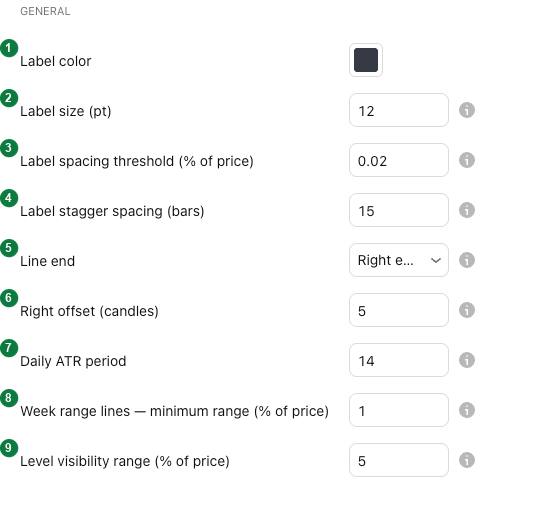
| 1 · Label color | The text colour of every label. |
|---|---|
| 2 · Label size (pt) | The text size of the labels in points: about 8 is tiny, 14 normal and 28 huge. Default 12. |
| 3 · Label spacing threshold | When two labels sit at almost the same price, they are spread out sideways so their text doesn't overlap. This sets how close counts as "too close", as a percentage of the price. Default 0.02 %; 0 never spreads them. |
| 4 · Label stagger spacing | How far each of those labels is moved to the right, in candles. Default 15. |
| 5 · Line end | Right edge + offset (default): lines and labels end a few candles to the right of the current candle, so the labels stay clear of price. Fixed end time: they always run to the end of the session. |
| 6 · Right offset (candles) | With Right edge + offset: how many candles to the right of the current candle the lines end. Default 5. |
| 7 · Daily ATR period | How many days are used to measure the average daily range behind D ATR H and D ATR L. Default 14. |
| 8 · Week range lines — minimum range | The week range lines only appear once this week's range is at least this percentage of the price; early in the week the range is small and they mean little. Default 1 %; 0 always shows them. |
| 9 · Level visibility range | A line is only drawn while its level is within this distance of the current price. Lines further away would stretch the price scale and squeeze the candles; they return when price comes closer. Default 5 %; 100 always shows every line. VWAP and MDR are always drawn. |
Cash-future diff
Basics converts index levels to futures charts and futures levels to index and CFD charts with the current cash-future difference. This group sets, per market, where that difference is measured. The defaults work without a paid data subscription — in real time, except for the AEX, where the free data is 15 minutes delayed — so in most cases you leave this group as it is. If a field returns no data, a small warning appears on the chart and the converted lines are hidden until it is fixed.
Frequently asked questions
How do I get the original settings back?
Open the settings, click Defaults at the bottom left and choose Reset settings. Every input returns to the value Basics comes with.
Can I use my own settings on every new chart?
Yes. Set everything the way you like, then choose Defaults → Save as default. TradingView uses those values the next time you add Basics to a chart.
How do I keep a line but hide its label?
Clear the label text of that line. The line stays, without text next to it.
Why is a line not drawn although it is switched on?
Most often it is further from the current price than the Level visibility range (5 % by default) — it returns when price comes closer. Also check the master switch of its group, and whether the line exists for your chart at all: each level page has a Why don't I see the line? checklist.
What does lookback do?
It sets how many of the most recent lines of that kind stay on the chart. With 1 (the default) you see only the latest one, for example yesterday's closing price; with 3 also the two before it.
Set Basics up your way
Basics is free on TradingView. Add it to your chart, open the settings and switch on the lines you trade.